Extract a color palette
Find representative colors, copy useful design values, and export a PNG palette.
Reference edition 2.0.0. Version 2.0.0 is a pre-release for Windows and Linux, available by manual download. Some screenshots come from an earlier development edition and may show different controls; their values are examples. Review your package’s release notes and saving options before processing.
On this page
What the palette represents
The tool analyzes a reduced image and groups similar colors, showing the most frequent in that representation first. It is not a pixel eyedropper or print-color certification tool.
The 2.0.0 pre-release supports up to 100 images, inspecting one palette and exporting one output per image in the batch. The selector offers JPEG, PNG, WebP, BMP, TIFF, AVIF, and HEIC/HEIF as codecs allow. Extraction rejects animations and multipage images.
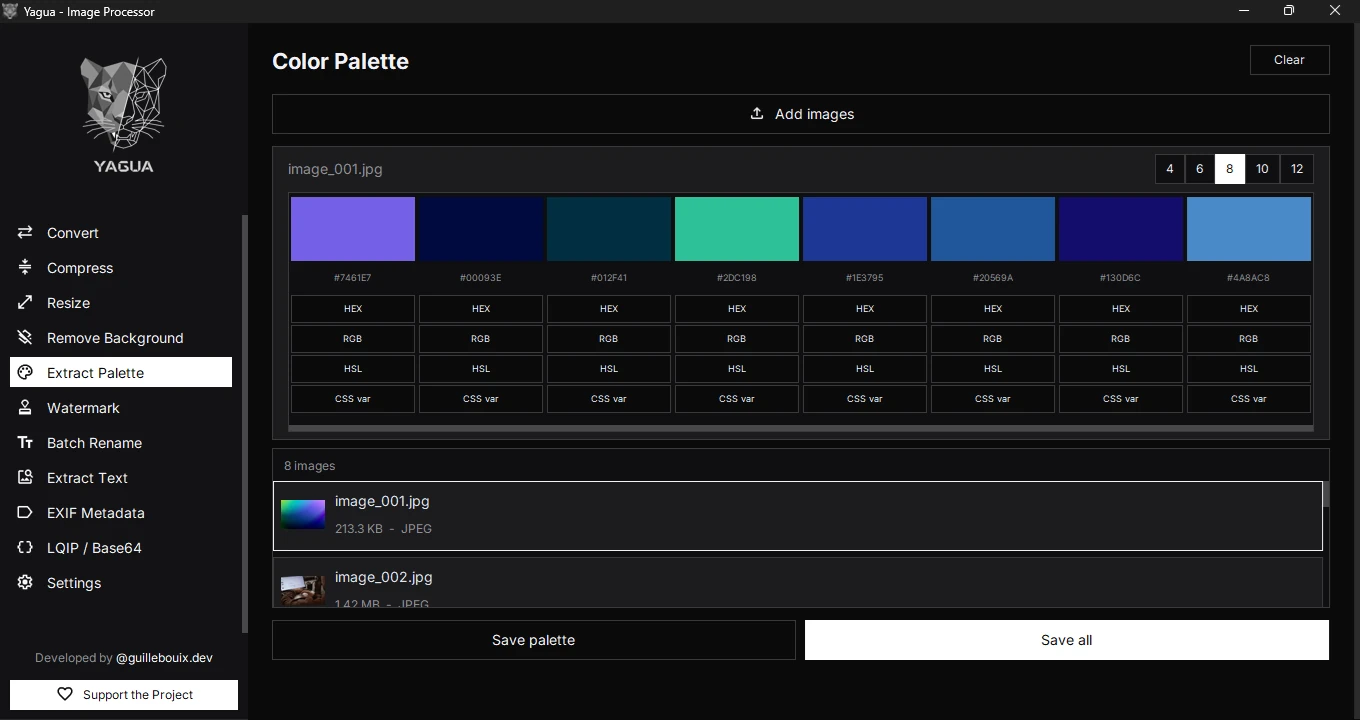
Controls
| Control | Initial value or options |
|---|---|
| Add images | Adds up to 100 unique images and reports duplicates or excluded files. Select a row to inspect its palette. |
| Colors to extract | 6 initially; 4, 6, 8, 10, or 12. |
| HEX, RGB, HSL, CSS var | Per-swatch buttons that copy its representation. |
| Save open palette | Exports the inspected palette as PNG. |
| Save all | Selects a folder and exports one palette per image. |
| Clear | Removes the image and palette from the screen. |
Changing the count extracts again automatically. Images with few color variations may yield fewer effective colors than requested.
Understand the formats
- HEX: a compact color value such as
#336699. - RGB: red, green, and blue amounts, for example
rgb(51, 102, 153). - HSL: hue, saturation, and lightness, useful for related colors.
- CSS var: a declaration such as
--color: #336699;. Rename the generic--colorif you define several variables.
A format button copies that swatch, not the entire palette. Status text identifies what was copied.
Procedure and example
- Open Extract Palette and add the images.
- Select a row to inspect its colors; the initial count is 6.
- Try 8 under Colors to extract for a broader selection.
- Click HEX beneath a swatch.
- Save the open palette as PNG or use Save all and select a folder to export the batch.
The suggested name for an individual export is <name>_paleta.png. Output contains swatches and HEX values, not a complete stylesheet, and leaves the original image unchanged. You can edit the filename; review the save dialog’s confirmation before replacing an existing file.
The screenshot shows the collection, the selected image’s 8-color palette, and the Save palette and Save all options. Save all processes the batch in the background, shows progress, and continues if a file fails; the status identifies per-file errors. Conflicting names are numbered, for example photo_paleta_1.png. Batch export preserves existing files and protects input images; individual export also avoids overwriting any input in the collection.
Interpretation limits
Results approximate the processed image. Fully transparent pixels are ignored; partly transparent pixels contribute their RGB without blending with a background. A fully transparent image does not produce a palette. There is no manual area selector to exclude a background.
For an object’s palette, first prepare an image without large unrelated regions. More extracted colors do not necessarily make a better interface palette.
New images and clearing
Selecting another row changes the inspected palette without exporting the full batch. Add images appends to the collection and skips duplicate paths or excluded files, reporting the total. Save all processes each image sequentially, shows progress, and reports extraction or export errors per file without stopping the rest. If an image cannot be read or has no visible pixels, an old palette is not its result: check that row’s notice.
Clear removes images and swatches without deleting exports. Check the color count when loading a new collection. Saving requires successful extraction; for read errors, try a valid PNG or JPEG copy.